Remote Support
Remote assistance should only be started when instructed by a support technician.
Using a Mac? Open the downloaded ZIP, then double-click
Start STS Remote Support.command. If macOS blocks it, Control-click the file and choose Open. It automatically selects the correct official RustDesk version and configures the STS server. Approve the administrator, Screen Recording, and Accessibility prompts; allow Input Monitoring if keyboard control is unavailable.Android setup and permissions
Install the official APK above. Android may ask you to allow installation from this browser. In RustDesk, open Settings → ID/Relay Server → Scan QR and scan this STS configuration:
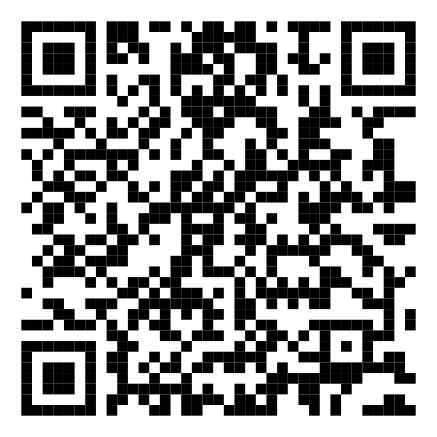
Then open Share Screen, approve Screen Capture, and enable RustDesk Input in Android Accessibility settings for remote touch control. Start the service and give the technician the displayed ID and one-time password. Android requires these sharing permissions again when a new support service is started.
- Download Remote Support.
- Open the downloaded application.
- Approve any Windows or macOS security prompts.
- Tell your technician the ID and one-time password displayed in the application.
- Keep the application open during the support session.
Security reminder: Only provide your support ID or password to a technician you contacted through our normal support channels.